This feature is available only to larger customers with an account manager and is turned off by default. Interested in using it? Contact your account manager or [email protected].
Projects let you group your rental requests and orders by project. That way, you can select the right project reference when placing an order. Once the feature is enabled for your company, a Projects tab appears under Rent.
View and create projects
Open the Projects tab under Rent. The overview page shows your company’s projects and lets you add a new one.
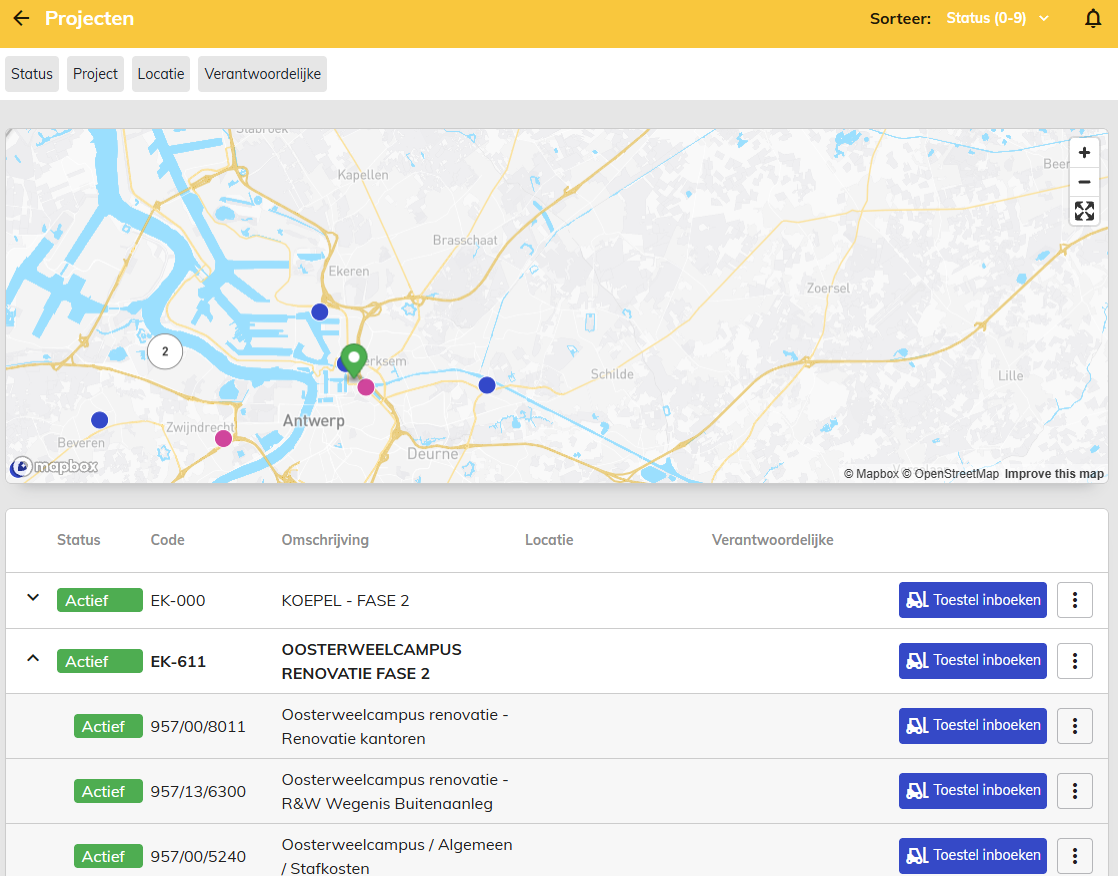
You can optionally assign a person in charge and a location to a project. If your company uses subprojects, you can add another level beneath a project. Open a project to view its details and start an order directly from there.
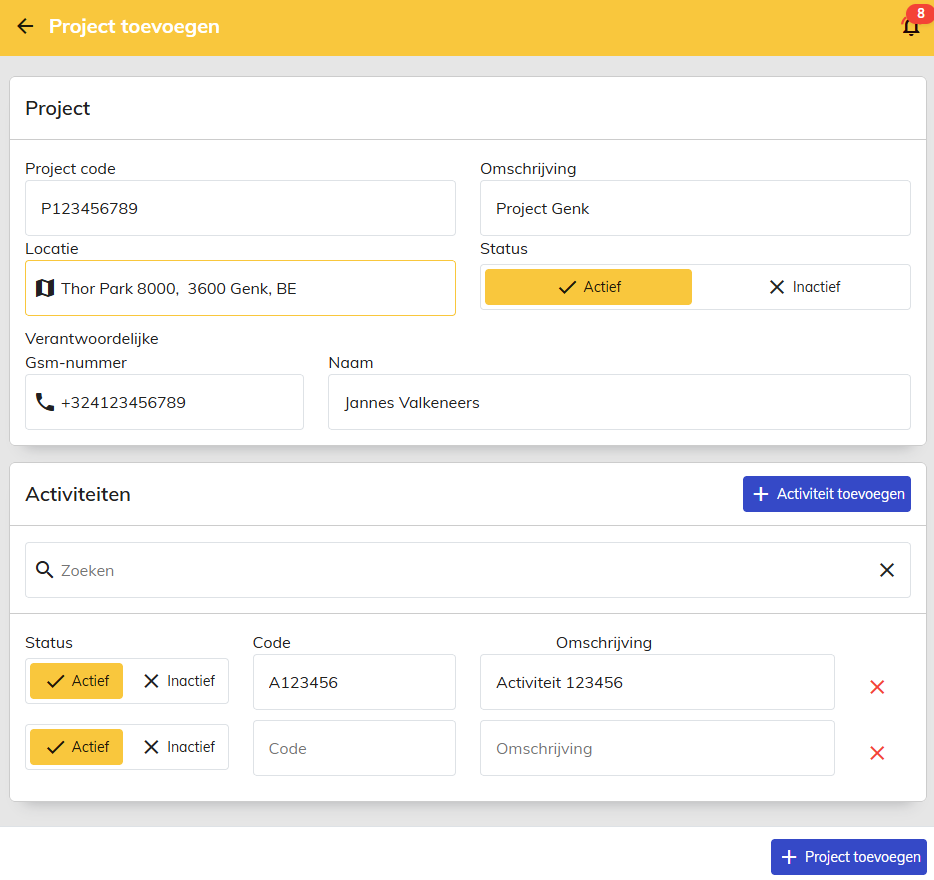
Place an order for a project
When you start an order from a project, the project is filled in automatically. If a location and contact person are available for that project, they are filled in too. Check these details before submitting your request.
You can also choose a project while placing an order. If your company uses subprojects, select both the project and the appropriate subproject. In this setup, you must make a selection for every order. The project then replaces the internal reference and appears on the invoice.
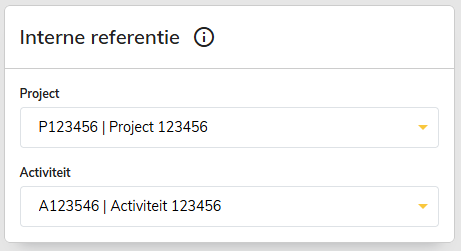
Is the right project not available yet? Create it first or, if your company has set one up, use a project such as Not yet known. You can change the project on a request later.
Split one rental across multiple projects
If Multiple projects per rental is enabled for your company, you can split the rental period of one piece of equipment between different projects or subprojects. For example, you could assign two days of a five-day rental to project A and three days to project B.
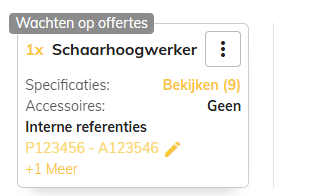
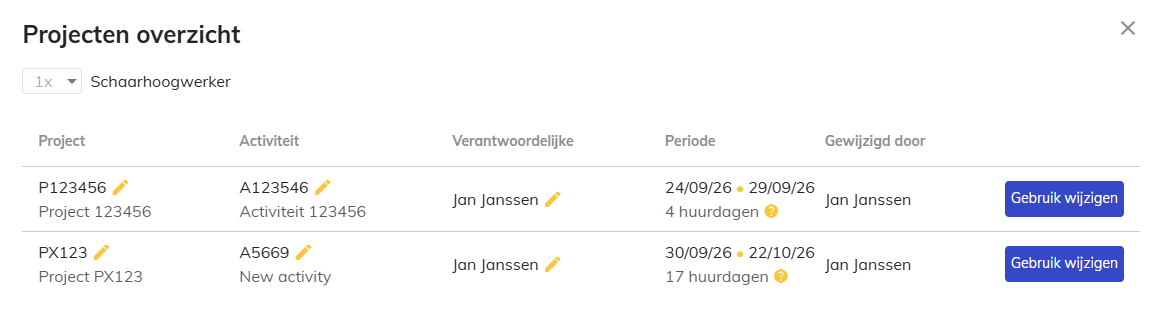
Don’t see this option? Contact your account manager or [email protected].
Projects from your own system
Already manage your projects in another system or ERP? They may be synchronized automatically with Bullswap. Discuss the options with your account manager.